
Shopify Installation and User Guide
Download the Shopify Installation and User Guide
1. Install the App
Step 1 – Click the 'Install' button on the app listing page
The Fortis app for Shopify can be easily found at the following direct link: https://apps.shopify.com/fortis
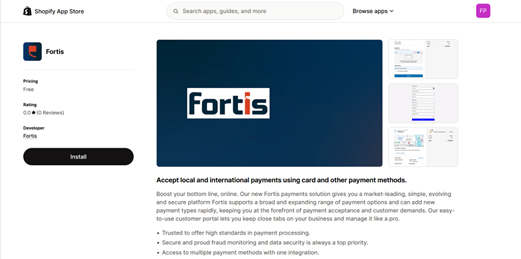
Step 2 – Click 'Install' on your store's landing page
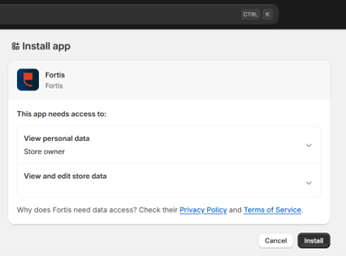
Step 3 – Enter your Fortis credentials and Save Settings
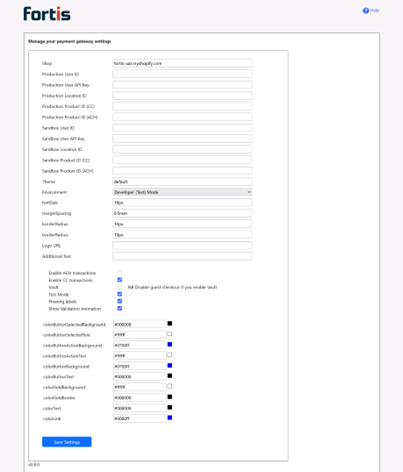
You can find your credentials here:
User ID: Find a User ID - Support
API Key: Generate a User API Key - Support
Location ID: Find Your Location ID - Support
CC and ACH Product IDs: Product Transaction ID - Support
Click Save Settings to finish setup and return to Shopify.
Step 4 – Activate the payment method
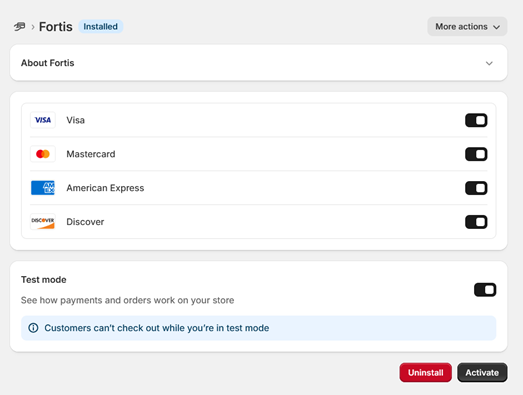
2. Change the App Setup
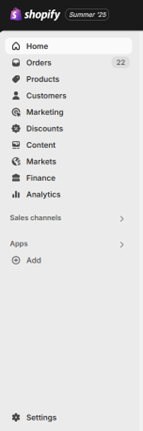
Step 1 – Open Settings
Click the Settings icon in the bottom-left corner of your Shopify dashboard.
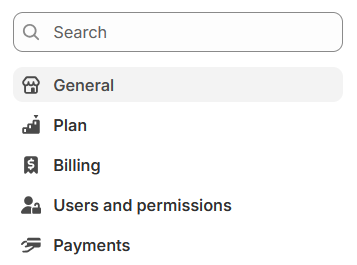
Step 2 – Go to Payments
In the left-hand menu, click Payments to manage your store’s payment methods.
Step 3 – Choose a Payment Capture Method
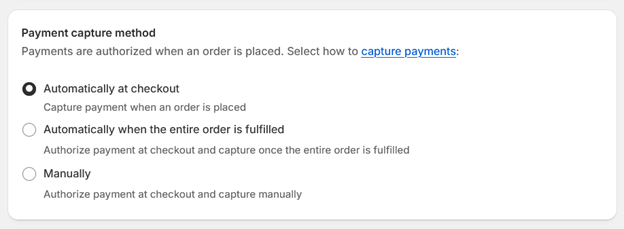
Automatically at checkout – Charges the customer right away.
Automatically when the order is fulfilled – Authorizes the payment now, but charges when the order is shipped.
Manually – Authorizes the payment now, and you’ll charge it later from the order page.
Note: If you are accepting both Credit Card and ACH payment methods, please select the ‘Automatically at checkout’ option. The other two options do not support ACH.
Step 4 – Select Fortis
In the Supported Payment Methods section, choose Fortis.
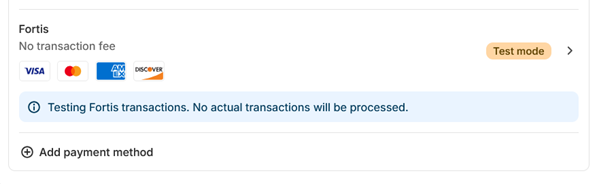
Step 5 – Configure Fortis
Click ‘More Actions’ then click ‘Manage’. This opens the Fortis setup page.

Step 6 – Enter Your Fortis Credentials
On the Fortis configuration page, enter your API credentials and choose your payment methods
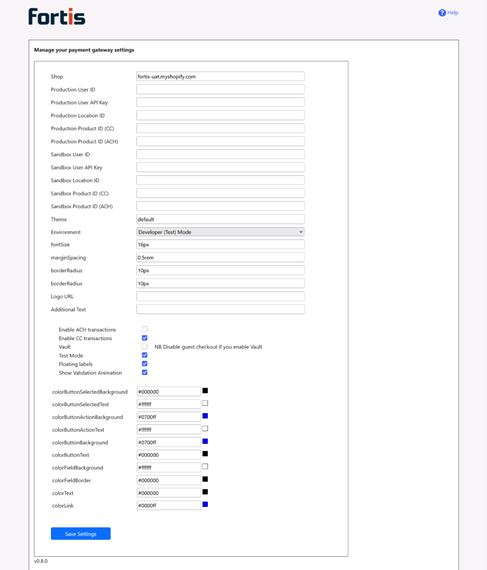
You can find your credentials here:
User ID: Find a User ID - Support
API Key: Generate a User API Key - Support
Location ID: Find Your Location ID - Support
CC and ACH Product IDs: Product Transaction ID - Support
Click Save Settings to finish setup and return to Shopify.
3. What Customers See
When customers check out, they will see Fortis as a payment option.
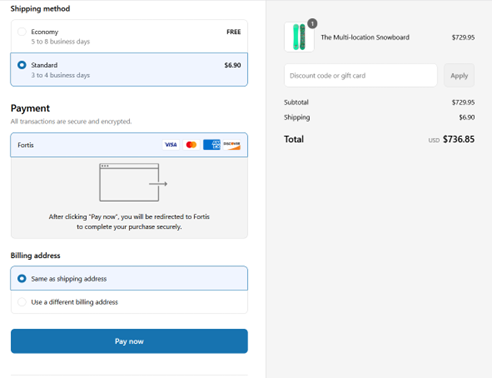
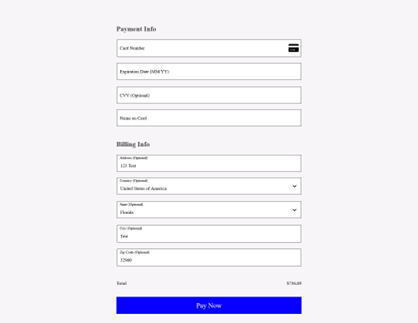
When they click 'Pay now' they are taken to a secure Fortis payment page (you can customize this with your logo and a message).
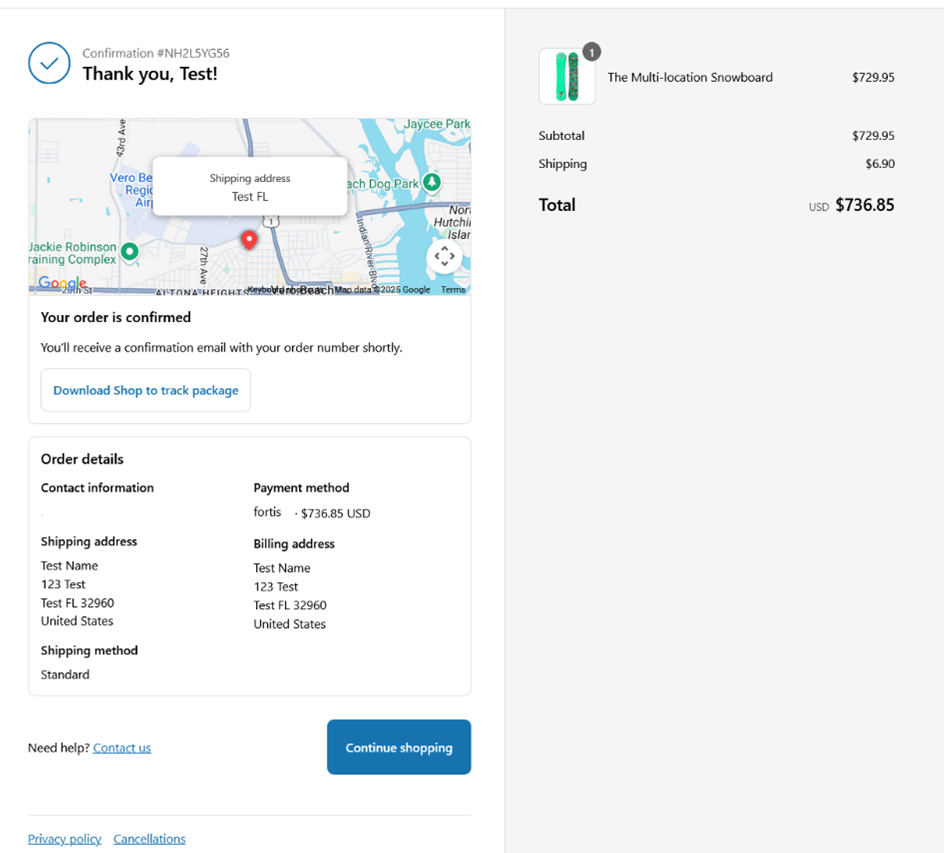
After payment, they are redirected to the order confirmation page.
4. How to Void a Payment
You can void a payment if it is still in the Authorized status.

Step 1 – Go to Orders and click the order number.
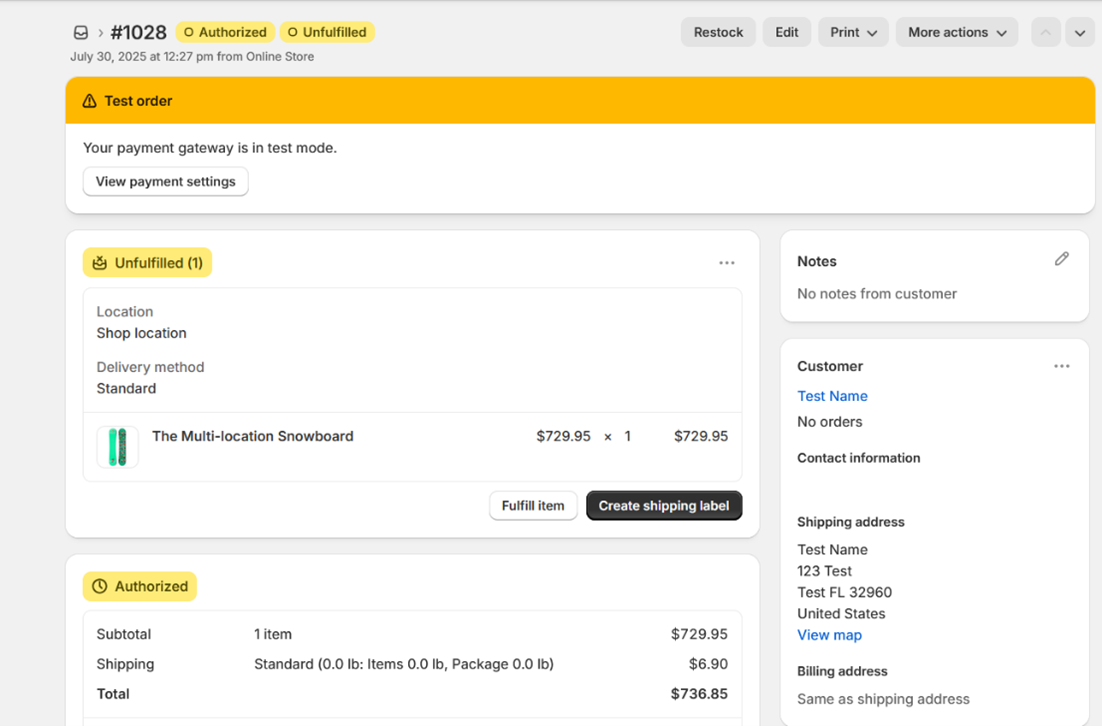
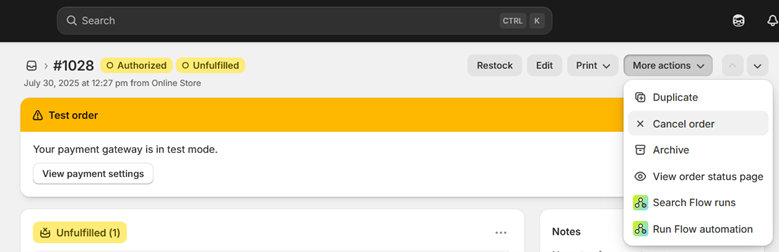
Step 2 – Click More Actions > Cancel Order.
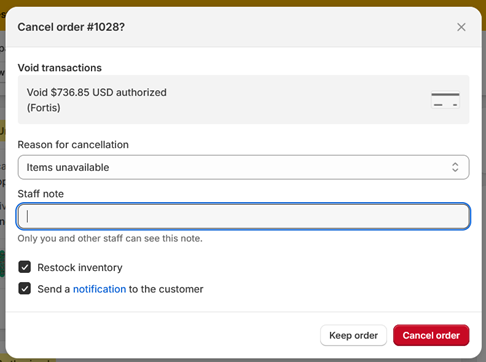
Step 3 – Confirm by clicking Cancel Order.
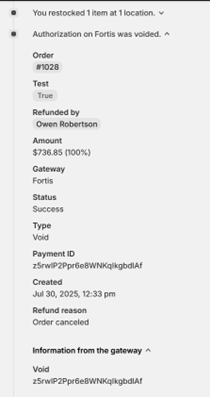
Step 4 – Check the order timeline to confirm the payment was voided.
5. How to Capture a Payment
If a payment is Authorized, you can capture it manually.
Step 1 – Go to Orders and click the order number.
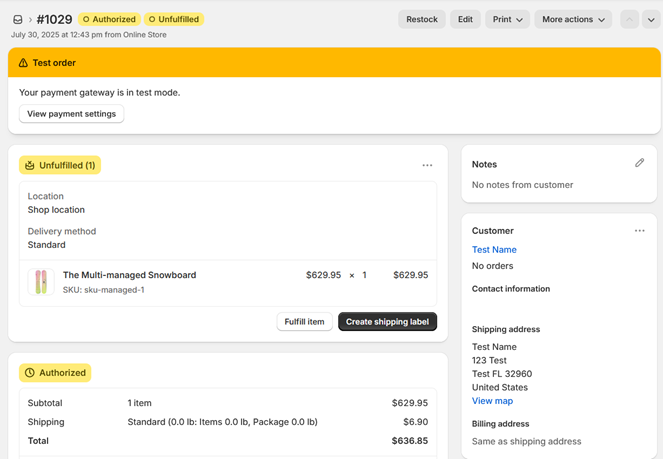
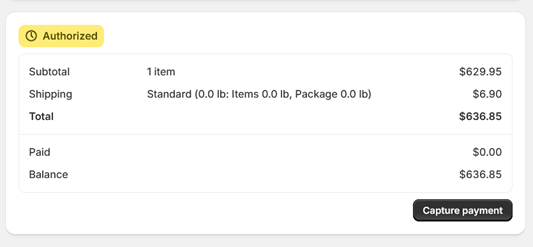
Step 2 – Click 'Capture payment'
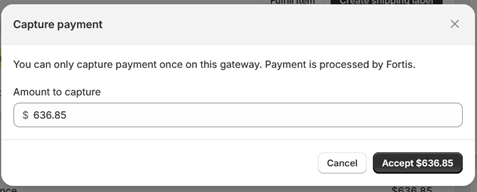
Step 3 - Confirm by clicking Accept. (Note: Partial capture is not supported.)
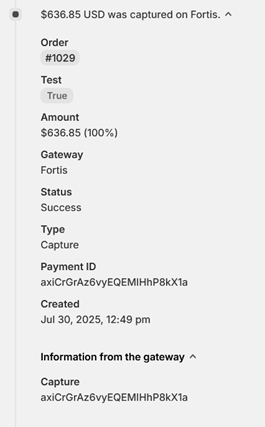
Step 4 - Check the order timeline to confirm the payment was captured.
6. How to Refund a Payment
You can refund a payment if it’s in Paid status. Full and partial refunds are supported, up to the original payment amount.
Step 1 – Go to Orders and click the order number.
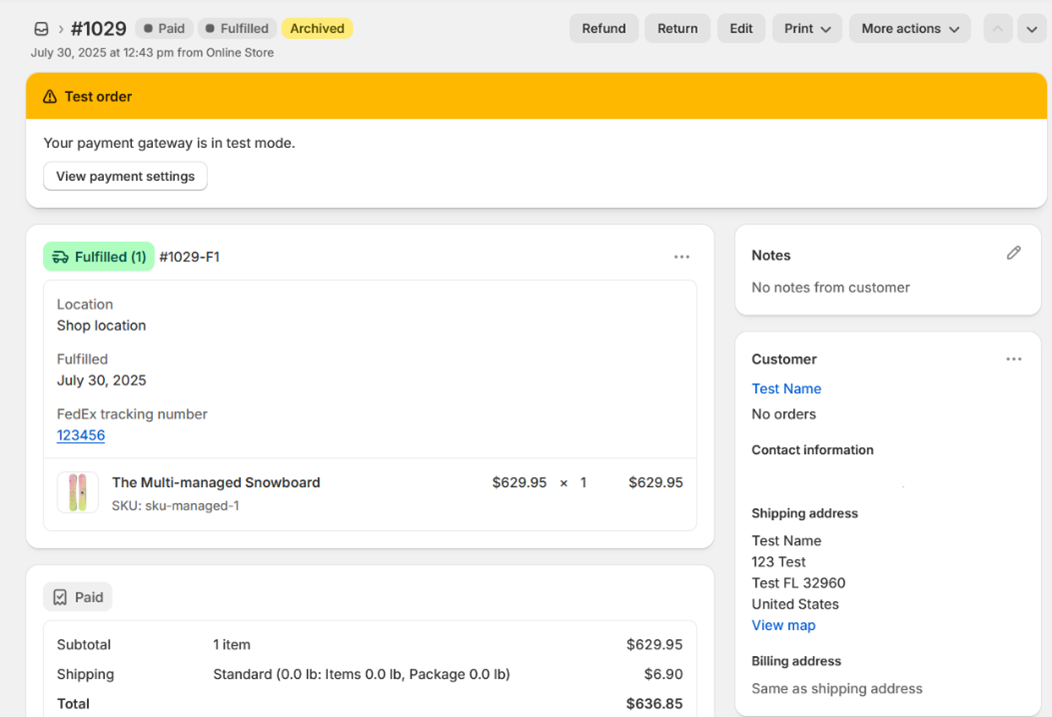
Step 2 – Click Refund at the top of the page.

Step 3 – Select the items and shipping to refund, then click Refund.
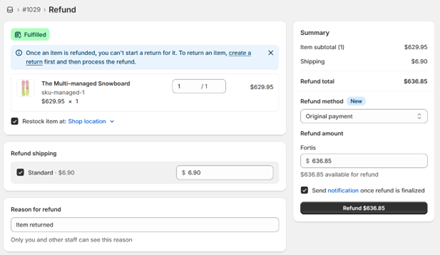
Step 4 – Check the order timeline to confirm the refund was successful.
6. How to check the status of an ACH payment
When a customer makes an ACH payment, the payment is in a pending state until the funds are transferred successfully into your account. The Payment status of the Order is automatically updated when the transaction changes from Pending to Settled.
When a customer makes an ACH payment, it first has a ‘Pending payment’ status on the order

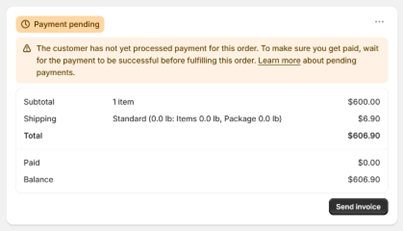
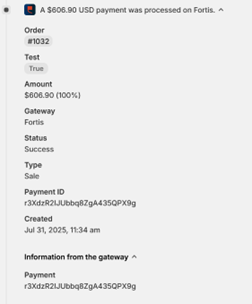
Once the payment has settled and you have received the payment, the status changes to Paid.

Check the Order timeline to confirm that the payment was successful.
Note: ACH payments cannot be refunded or voided in the Shopify dashboard. Please manually refund these transactions using the Fortis merchant portal.